
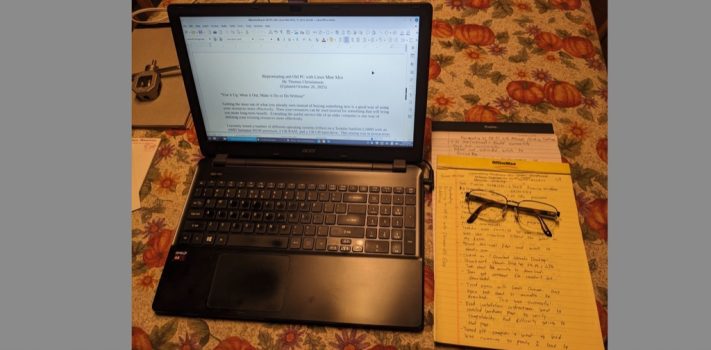


Our Motto; “Use it Up, Wear it Out, Make it Do or Do Without”.
Getting the most out of what you already own instead of buying something new is a good way of using your resources more effectively. Then your resources can be used instead for something that will bring you more long-term benefit. Extending the useful service life of an older computer is one way of utilizing your existing resources more effectively.
JWR Adds: Given the huge number of online books, web archives, offline copies of Wikipedia, service manuals, military manual PDFs, e-Book Bibles and Bible commentaries, and other references that are available, a reliable laptop computer can be an important part of your family’s long-term preparedness and self-suffciency library. What good is owning a waterproof SurvivalBlog Archive USB stick, or a complete archive of The Mother Earth News on CD-ROM if you have no way to access them? Every well-prepared family should have a reliable laptop computer and a hefty backup battery of some sort. Just an inexpensive Lithium-Ion power station from Jackery or Harbor Freight and a 40-watt solar panel to charge it will suffice.
I recently tested a number of different operating systems (OSes) on a Toshiba Satellite L500D with an AMD Semrpon M100 processor, 2 GB RAM, and a 138 GB hard drive. This testing was in preparation for an installation on an Acer Aspire ES-551 with an AMD A8-7100 processor, 6 GB RAM, and a 757 GB hard drive.
These OSes included Ubuntu, Xubuntu, Chrome OS Flex, LinuxLite, and Linux Mint Xfce.
Of these various OSes, I found Chrome OS Flex to be somewhat useful, but Linux Mint Xfce gave the best results for the older computers that I tested.
Both OSes are available for free. Chrome OS Flex is available at https://chromeos.google/products/chromeos-flex/ . Linux Mint Xfce is available at https://linuxmint.com/download.php .
There are a host of other free OSes available. Most, but not all, of them are based on Linux. Thrifty computer users may want to try out one or more of these OSes in order to extend the useful service life of their older computers.
Background
About six years ago or so, a friend passed his old notebook computer on to me when he bought a new one. The old computer, an Acer manufactured in 2014, could no longer keep up with his somewhat demanding engineering and video editing software.
That Acer served me well for many years. I used it primarily for relatively undemanding applications like word processing and web browsing. Until recently, all of my articles for SurvivalBlog were written on the Acer.
But even though I did not install any new software, the Acer gradually began to slow down as the years passed. New updates to the OS from Microsoft made increasingly greater demands on the system. Eventually, I needed to budget at least an hour for a writing session just to allow enough time for the system to boot up and still leave me some time to actually gather my thoughts and write.
I began to seriously consider investing in a new notebook computer. But before putting out money on a new computer, I decided to see if a different OS might be able to breathe new life into the Acer.
The challenge was that I could not afford to be without a computer during the time when I would be testing alternate OSes. I still needed to be able to write articles for SurvivalBlog regardless of how well or poorly the testing process was going.
Fortunately, I had a second computer available that I could use as a test platform for the alternate OSes. It was an older notebook computer, a Toshiba. The Toshiba had shipped with Windows 7 back in 2010 when it was manufactured. When the operating system was upgraded to Windows 10 in 2015, the Toshiba ran so slowly that it became virtually useless. It just sat around my office gathering dust until my office was redecorated a couple of years ago. In conjunction with that redecorating, I was asked to get the old Toshiba out of the way. So I took it home, and allowed it to gather dust in my closet instead. Now the time had come for the old machine to repay all those years of free storage.
The Ubuntu OS
The first alternate OS that I tested was Ubuntu. Ubuntu is currently the more or less state-of-the-art Linux operating system.
I opened a web browser on the Acer and went to Ubuntu.com. There I clicked on “Download Ubuntu Desktop” in order to download Ubuntu Desktop 24.04.2 LTS. My wife, “Kari” was watching an online video in the living room, so the download process was somewhat slow. I walked the dog, cleaned out my briefcase, and learned a foreign language while I was waiting. (Okay, just kidding about the foreign language. The rest is true). Little did I know that this waiting was just a small foretaste of the hours and hours of waiting that I would endure throughout the testing process. Internet connections and central processing units work at their own pace, and are not concerned with the impatience of mankind.
I found a helpful article from PC World online about installing Ubuntu ( https://www.pcworld.com/article/2111899/how-to-install-ubuntu-linux-right-way.html ). The most helpful advice from the article concerned how to use a free program named Rufus ( https://rufus.ie/en/ ) to create a bootable USB drive using the Ubuntu ISO file that I had downloaded. So I placed a 64 GB USB drive into a slot in the Acer, downloaded and started Rufus, and read a book while it created the Ubuntu installation disk.
When the Ubuntu installation disk was ready, I inserted it into a slot in the Toshiba and started the computer. The Toshiba was programmed to prioritize booting from the hard drive rather than a USB drive, so I had to figure out how to get into the boot menu.
That was not an easy task. I searched online for advice. I tried holding down F12 during startup. I tried holding down Escape. I tried F2 and F10 and then F12 again. I tried F8 and F1. Then I realized that I had been doing a soft shut-down rather than a hard shut-down. I did a hard shut-down and tried F2 again. It worked.
I changed the boot menu to prioritize USB boot, and began to install Ubuntu. The installer took a while to initialize. I read a book . . . until I received the message “Something Went Wrong.”
I tried again. This time I got to select the language, keyboard layout, and connect to WiFi. But the process took so long that I ended up staying up past my bedtime. Twice.
To keep a long story from becoming even longer, I finally managed to install Ubuntu. When I did, I discovered that Ubuntu demanded so many system resources that it did not run well on an older PC.
I decided to try another OS instead.
Xubuntu
I had heard that Xubuntu ran better on older computers than Ubuntu, so I downloaded the ISO file from https://xubuntu.org/ . I started the download, showered, shaved, and dressed, and still had 10 minutes to spare before it was done.
When the ISO file was downloaded, I used Rufus to make an installation disk and then began the installation process. Part way through the process, the computer froze up. I tried again . . . and again. I finally decided to try a different OS.
Chrome OS Flex
I went to https://chromeos.google/products/chromeos-flex/ to download the ISO file. My first attempt crashed the PC. After a reboot, the next attempt was a success. I then used Rufus to create an installation USB disk, put the installation disk in the Toshiba, and turned it on. Installation took only six minutes. Starting up, getting the device ready, signing into Chromebook, and installing updates took another hour. Then it seemed to hang up. But after a restart it worked.
There were eight main capabilities that I wanted the computer to possess with the new OS: word processing, web browsing, Bible study, PDF reading and creation, printing, media playing and editing, and graphics editing. A bonus capability would be the ability to play DVDs from the Toshiba’s integrated DVD drive.
Web browsing was the easiest. Chrome OS Flex prominently features the Chrome web browser, as it name would suggest.
Next I added my printer. It worked easily! I was very impressed since Windows 10 always seemed to have a hard time finding and remembering it.
Chrome OS Flex would really like you to use Google Docs for word processing. And Google Docs can be configured to work offline. But my short exposure to LibreOffice while testing Ubuntu had impressed me. I wondered it I could use it under Chrome OS Flex.
I discovered that a virtual Linux machine could run under Chrome OS Flex. Per instructions that I found online, I went to “Settings” then “About” and there under “Linux Development Environment” I turned on the virtual Linux machine.
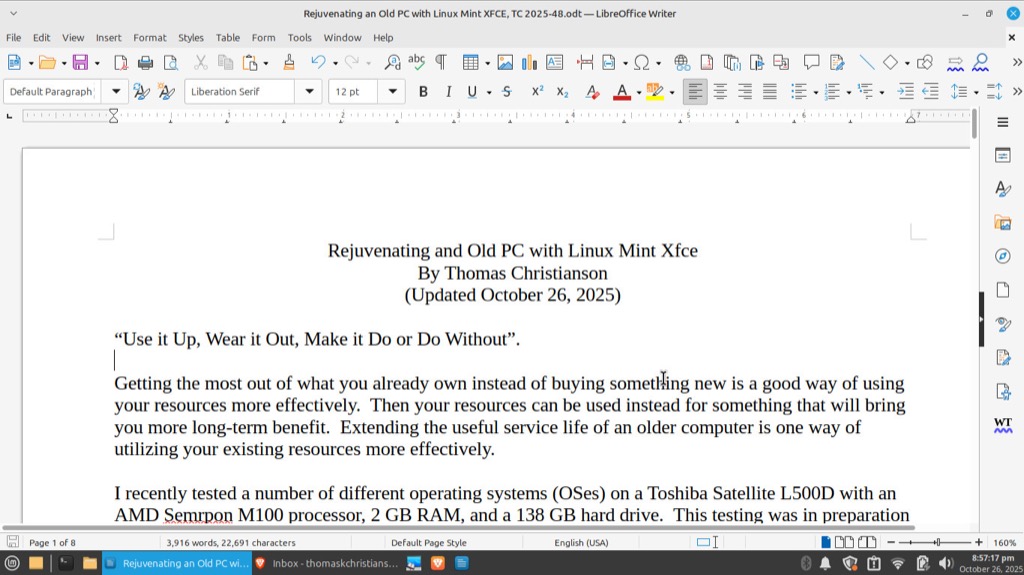 Next, I opened a Terminal session in the app menu. Following advice from a YouTube video ( https://www.youtube.com/watch?v=XgcWi80tJX4 ), I entered the Linux section in Terminal and entered the command “sudo apt install libreoffice”. This successfully installed LibreOffice to the system. I have been a dedicated WordPerfect user ever since I installed version 5.1 for DOS on my first computer using floppy disks. But my transition to LibreOffice was remarkably smooth and painless. I am using it even now as I write these words. And it is free! It is available for Linux, Mac, and Windows Systems. If you don’t have some pressing reason to buy Microsoft Office, WordPerfect, or some other Office Suite, then I highly recommend that you use LibreOffice instead.
Regarding Bible Study, I have used the Online Bible program ever since I received my first DOS version on 5.25 inch floppy disks. Theoretically, it runs well on Linux using a program called Wine to create a Windows virtual machine. But I thought that running a Windows virtual machine under a Linux virtual machine under Chrome OS Flex might be a bridge too far. So I installed a Linux program called Xiphos with the command “sudo apt install xiphos” in Terminal instead. It worked okay, but lacked many of the features to which I was accustomed from Online Bible. I would later find a better Linux Bible program, which I will describe in Part 2.
LibreOffice also supplied PDF capabilities. I was not able to explore media and graphics capabilities very much in the two weeks that I tested Chrome OS Flex. I was also unable to find any way for it to play DVDs. I tried VLC Media Player using the Linux virtual machine, but it did not work. It is possible that it might with the installation of the proper codecs, but I did not invest the time to find out.
The Gallery app in Chrome OS Flex provided photo editing and can also open PDF files. It seemed to work okay.
The proof of the pudding was using the computer to write an article for SurvivalBlog. It performed very well.
Ironically, although the Linux programs ran great under Chrome OS Flex, I found the Chrome browser in particular to run much slower than I had hoped. This is not solely Chrome’s fault, since I discovered that performance varied greatly depending upon which website I was visiting. As more and more powerful computers have become available, some website developers have begun to design sites that demand more and more computing power. (I am happy to report that SurvivalBlog is not one of these demanding sites).
The Chrome Store is not available under Chrome OS Flex, which severely limited my selection of applications.
(To be concluded tomorrow, in Part 2.)